AI Stickman Animation Generator

Turn your script into stickman videos with AI-generated scenes, voiceovers, and captions.

How to use

How to Create Stickman Animation with AI

Use the AI Stickman Animation Generator to turn a story into white-background illustrations, narration and captions. Follow the same simple workflow as the NarraCut homepage.

  1. Write your stickman story

    Paste the words you want the narrator to say. Give each sentence one clear action or idea, such as a character choosing a path or helping a friend. Choose a landscape, vertical or square format, then select a voice.

  2. Let AI create the stick-figure scenes

    Leave Images empty to generate illustrations with big round heads, bold black outlines and a white background. If you already have your own stickman drawings, open Images and upload them before generating instead.

  3. Generate your AI stickman video

    Select the generate arrow once. NarraCut creates the illustrated scenes, voiceover and timed captions from your script. Check the credit cost shown on the button before starting, and wait for the video preview to appear.

  4. Preview and choose the right pictures

    Play your stickman video with sound. Click a sentence or its image to choose a different picture for that passage. Check captions and character details, then use Settings to adjust the video format or visual presentation.

  5. Download your stickman animation video

    Select Download MP4 to export the current preview in a supported browser. Keep the page open until the download finishes. Use Create new video when you want a fresh story; saved work follows the same project workflow as the homepage.

Six Ways to Use Stickman Animation

The AI Stickman Animation Generator works from the narration you provide. Bring lessons, short stories and everyday ideas to life with simple stick-figure scenes.

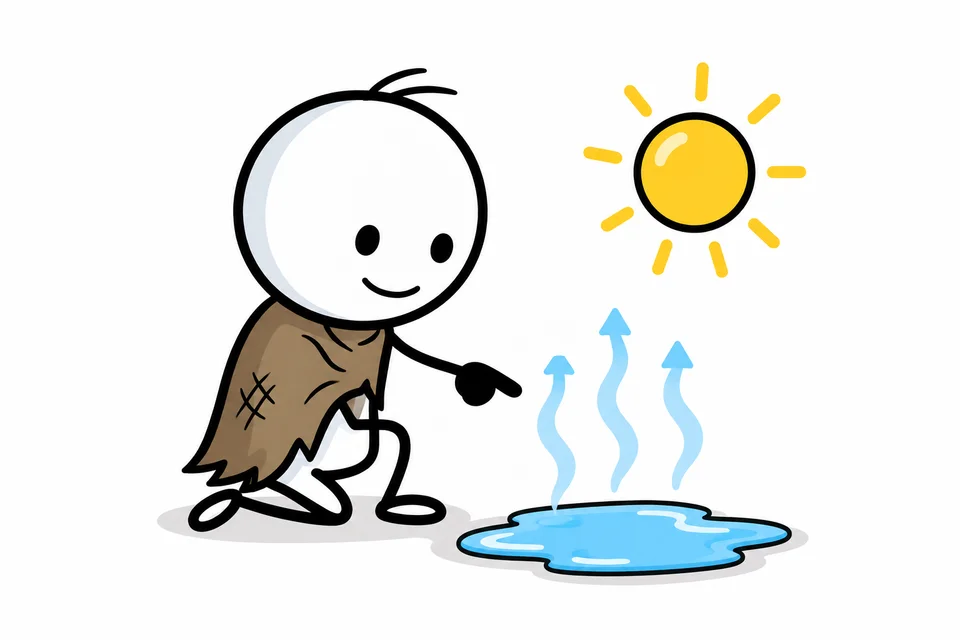
A big-headed stick figure explaining evaporation beside a puddle and sun on a pure white background

01 / Explain an idea

Make an invisible process easier to follow

A science explainer works best when each sentence introduces one visible change. Start with rain collecting in a puddle, then describe the sun warming the water, and finish with vapor cooling into droplets. The viewer gets a sequence to follow instead of a crowded diagram that tries to say everything at once.

Use the AI Stickman Animation Generator to pair that narration with simple illustrated scenes. Keep technical terms in the script, where the voice and captions can explain them. Review every generated picture for scientific accuracy; an appealing drawing can still place an arrow incorrectly or leave out an important condition.

Narration example“Rain leaves a small puddle on the ground. The sun warms the water, and some of it evaporates into the air.”
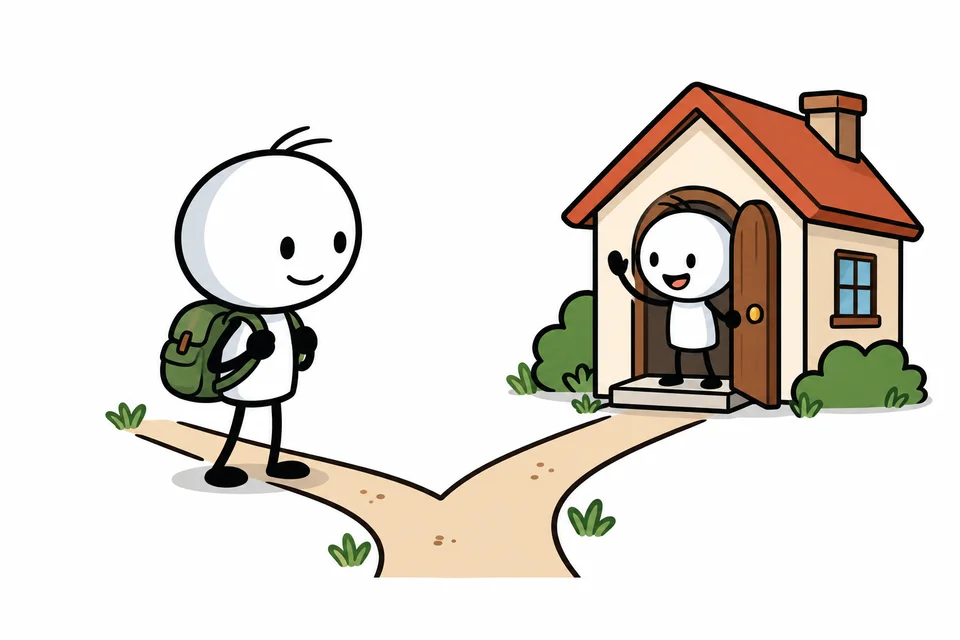
A stick-figure traveler with a green backpack choosing a path toward a welcoming friend on a white background

02 / Tell a short story

Give a character a goal, a choice and a result

Short stories need recognizable actions more than detailed scenery. Introduce a traveler, give the traveler a decision, and show what happens next. A repeated accessory or a clearly named role can help readers follow the same character through the narration. Avoid introducing several nearly identical people in one sentence.

The AI Stickman Animation Generator creates separate illustrations for the story beats. Check faces, clothing accents and props across scenes before exporting, because exact character consistency is not guaranteed. If a picture fits another sentence better, reassign the picture in the scene list without changing the narration or stretching the image.

Narration example“Sam reached a fork in the road and stopped to think. He chose the path toward a small house.”
A smiling stick figure reading a green book with a phone set aside in a box on a white background

03 / Create a vertical video

Build a short around one useful change

For a portrait video, begin with a specific problem rather than a broad introduction. A character who keeps checking a phone gives the audience something concrete to recognize. Follow that moment with a small action and a visible result. This structure suits a practical tip, a personal reflection or a short narrated lesson.

Choose 9:16 in the AI Stickman Animation Generator before starting. Preview the captions and the amount of white space on a narrow screen, then export the MP4 for your own publishing workflow. The tool does not post to social accounts, predict engagement or guarantee that a video will go viral.

Narration example“Mia put her phone in a box and opened a book. Ten quiet minutes became her favorite part of the day.”
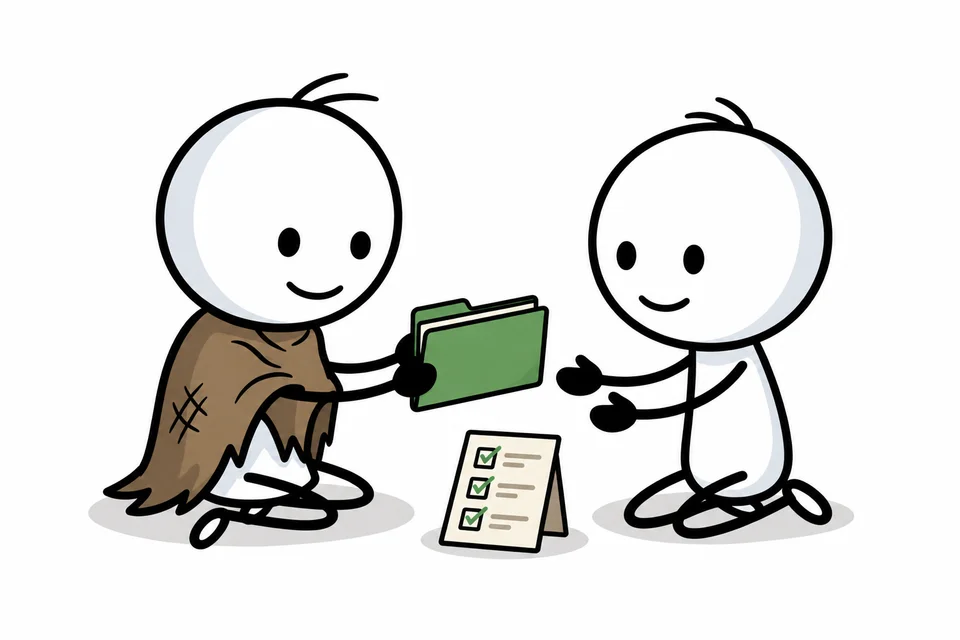
Two big-headed stick figures handing over a green folder beside a checklist on a white background

04 / Explain a handoff

Show who does what in a team process

A process video becomes clearer when each sentence names the person responsible and the next action. Describe a teammate receiving a request, checking the details and passing the work to the next person. Use ordinary objects such as a folder or checklist to make those handoffs visible without reproducing an entire internal dashboard.

The AI Stickman Animation Generator is useful for an introductory overview that a colleague can listen to. Keep exact policy wording in the narration and check the captions for names or specialist terms. When the audience needs to read real interface labels, use your own screenshots in the script-to-video tool instead.

Narration example“Alex checks the request before passing the folder to Jo. Jo confirms the details and starts the next task.”
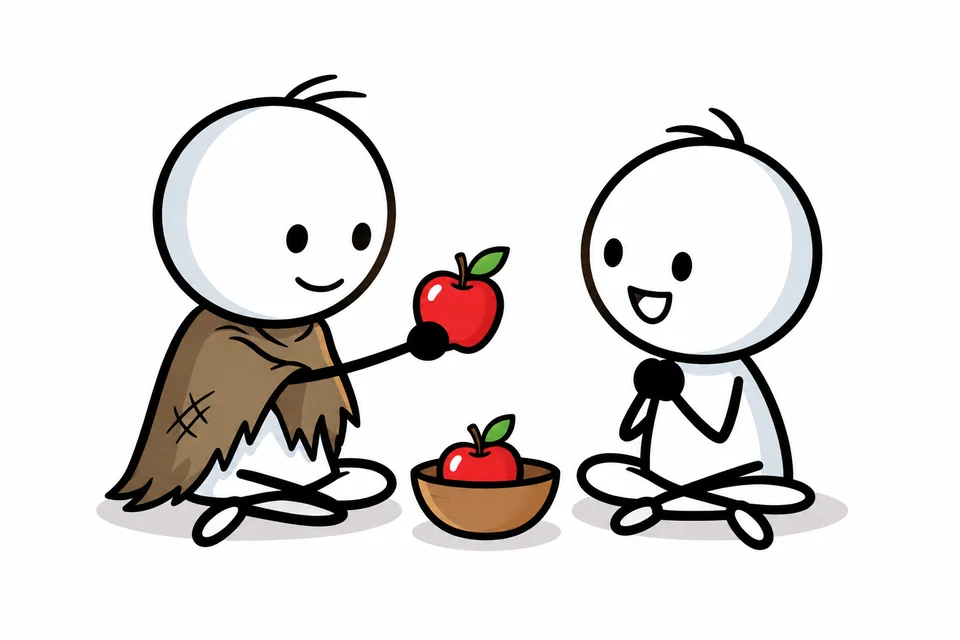
Two smiling stick figures sharing red apples from a bowl on a pure white background

05 / Support a lesson

Connect a spoken phrase to a simple picture

Teachers can use familiar objects to connect a sentence with its meaning. A person holding an apple, sharing it with a friend or pointing at an empty bowl gives a vocabulary lesson a concrete setting. Write the exact sentences you want learners to hear and leave space between ideas through natural punctuation.

With the AI Stickman Animation Generator, the narration and captions carry the wording while the illustrations support comprehension. Listen to the selected voice before committing to a lesson, especially for unfamiliar names or pronunciation. Review the result as teaching material; generated imagery is not a substitute for checking examples and explanations yourself.

Narration example“Lena has two apples in her bowl. She shares one apple with a friend.”
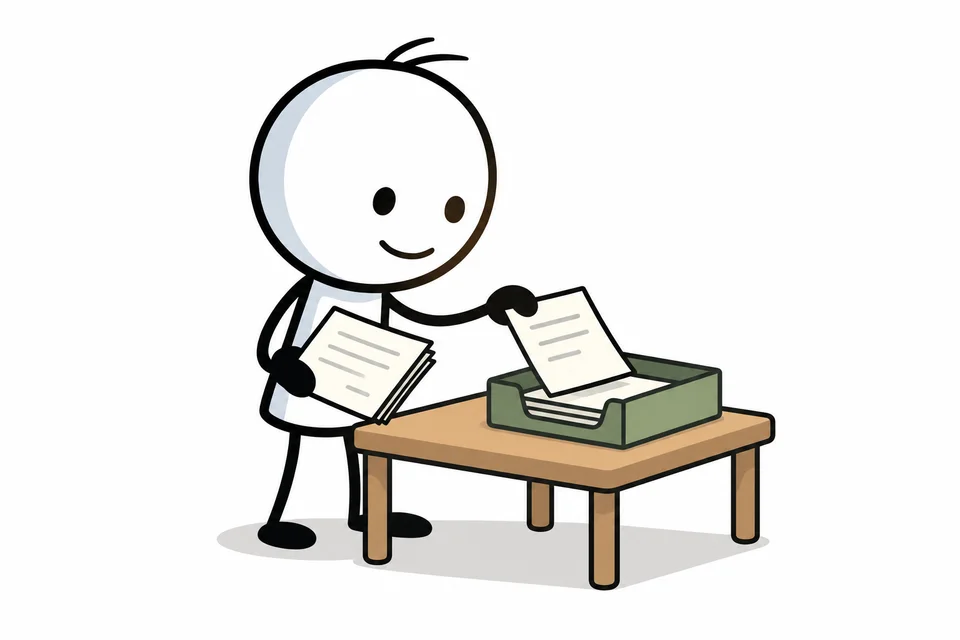
A smiling stick figure sorting papers into a green tray on a small illustrated table against white

06 / Introduce a solution

Explain the problem before presenting the product

An introductory product story can start with a person struggling to keep track of scattered work. Show the organizing action next, then describe the practical benefit in plain language. A simple stickman explainer video lets the audience understand the situation before they need to study a feature list or a detailed product demonstration.

Use the AI Stickman Animation Generator for that conceptual introduction. Write only benefits that your product actually delivers, and avoid invented numbers or customer quotes. For an accurate walkthrough of buttons, screens or physical details, bring real product images to the manual video editor rather than expecting generated drawings to reproduce them.

Narration example“Loose notes made the next task hard to find. A single organized tray helped the team see what needed attention.”

Choosing the Right Stickman Animation Workflow

“Stickman animation” can describe several workflows. NarraCut’s AI Stickman Animation Generator suits narrated scene sequences. Match the method to the result you need before spending time on a script.

Choose a tool by the video you want to make
Your goalSuitable workflowWhat to expect
A narrated stickman storyThis pageIllustrated scenes, voiceover, captions and MP4 export.
Walking, fighting or exact posesA joint or frame animation editorDirect movement control; a separate animation workflow.
Narration over your existing artScript to VideoUse supplied images instead of generating new ones.
A drawing appearing on screenWhiteboard AnimationReveal supplied artwork as a drawing.

Stickman Animation: Frequently Asked Questions

Is this a free online stickman animation maker?

This is a credit-based tool that requires a verified NarraCut account. A new AI image batch currently costs 10 credits; your available balance determines whether you can start. Check the pricing page for current purchase options. Do not assume that browsing the page or trying a sample script includes unlimited generation or an unrestricted free plan.

Can the AI Stickman Animation Generator animate a fight?

The current tool makes timed still illustrations with narration and captions. It does not generate articulated movement, combat choreography, lip sync or frame-by-frame character animation. You can describe a story involving action, but the output presents illustrated story beats. Choose a dedicated motion or frame animation editor when the movement itself is the point of the video.

What makes a useful text-to-stickman-animation script?

Write the words you want spoken, with one concrete event or idea per sentence. Name the subject and action clearly. Keep scene directions, camera commands and exact coordinates out of the narration, because the voice reads the script. Start with a few sentences, inspect the result, and expand only when the visual style suits your subject.

What happens if generation stops partway through?

This page uses the same generator and saved-project workflow as the homepage. Completed images and known generation tasks are retained with the project. Follow the error message to check or resume existing work before starting another generation. A new image batch can use credits, so avoid repeatedly submitting the same story while an existing task is still processing.

Does the exported video have a watermark?

Watermark removal depends on your account access and is checked again when you export. The download area shows the current status. Export runs in your browser, so MP4 support and available device resources matter. If export fails, the preview remains available for another attempt; the page does not need to order fresh illustrations just to retry the download.

Can I use my own images or reproduce a specific character?

The AI Stickman Animation Generator creates illustrations from your narration when Images is empty. To use your own drawings, open Images and upload them before generating. Uploaded pictures become the source visuals rather than character references for AI generation. A fixed drawing style does not guarantee an identical character in every generated scene, so review the result before exporting.

Need more generation credits? See current plans and pricing.

Create Your First Stickman Animation

Try the AI Stickman Animation Generator with a short narration you can easily review. Choose a voice, see how the scenes support the words, and decide whether this illustrated format suits your audience.

Create your stickman video